Windows Method :
Download IPTV Smarters app through this URL : https://www.iptvsmarters.com/download/?download=windows
Mac Method :
Download IPTV Smarters app through this URL : https://www.iptvsmarters.com/download/?download=mac
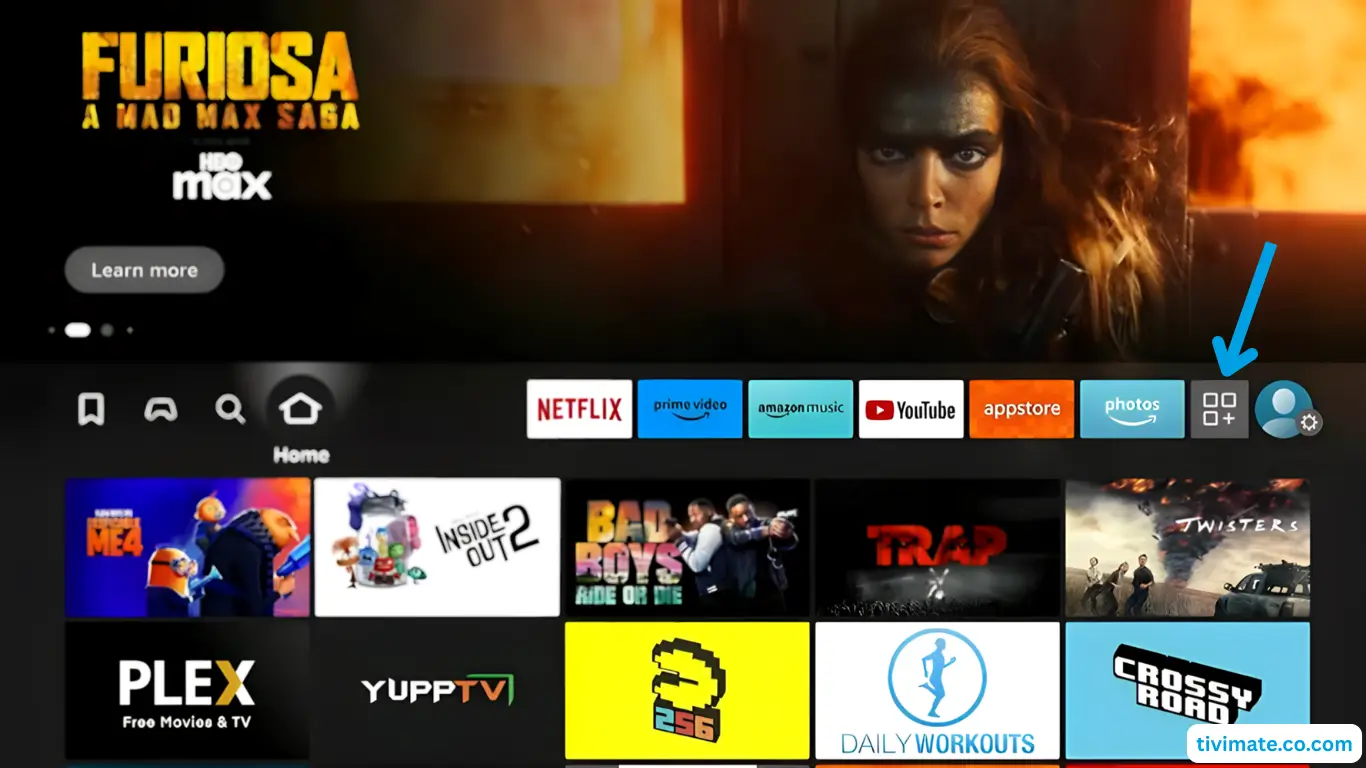
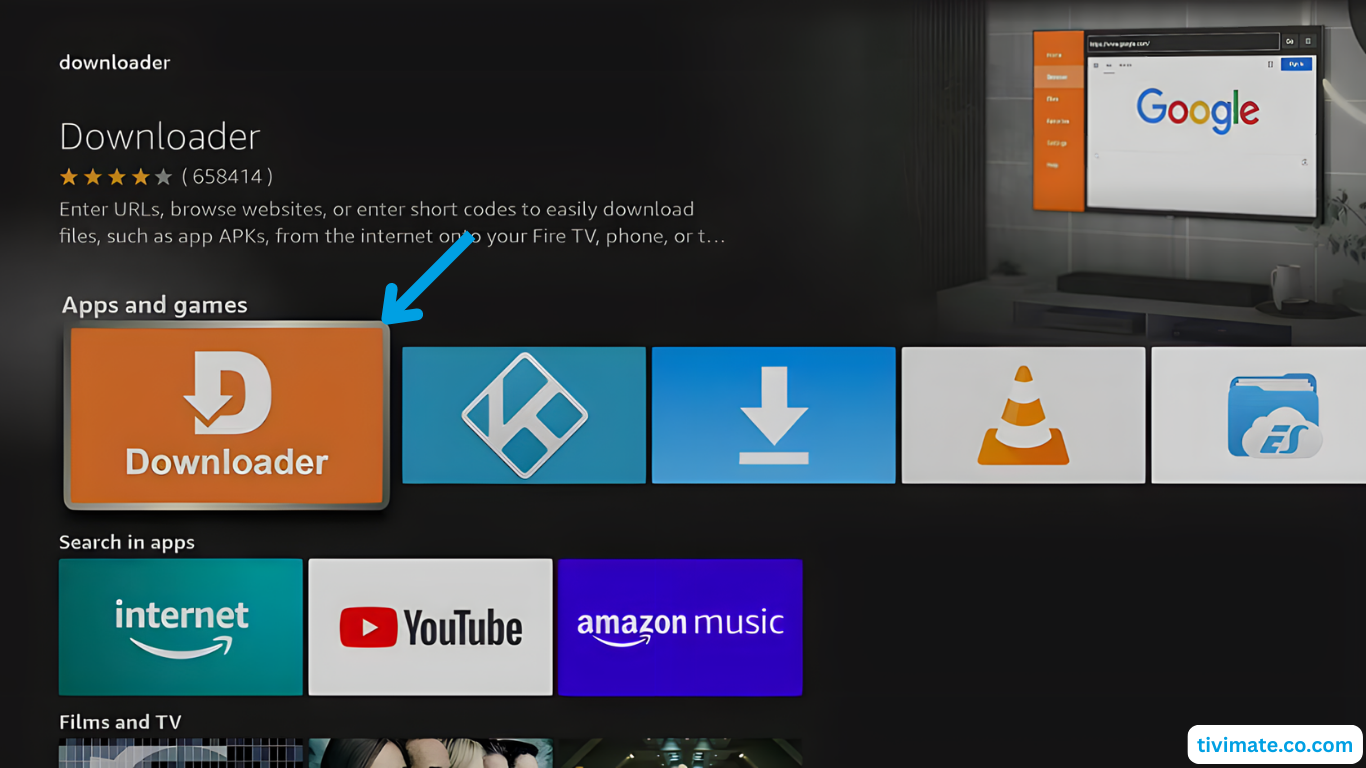
- Go to My Apps from Fire TV home screen

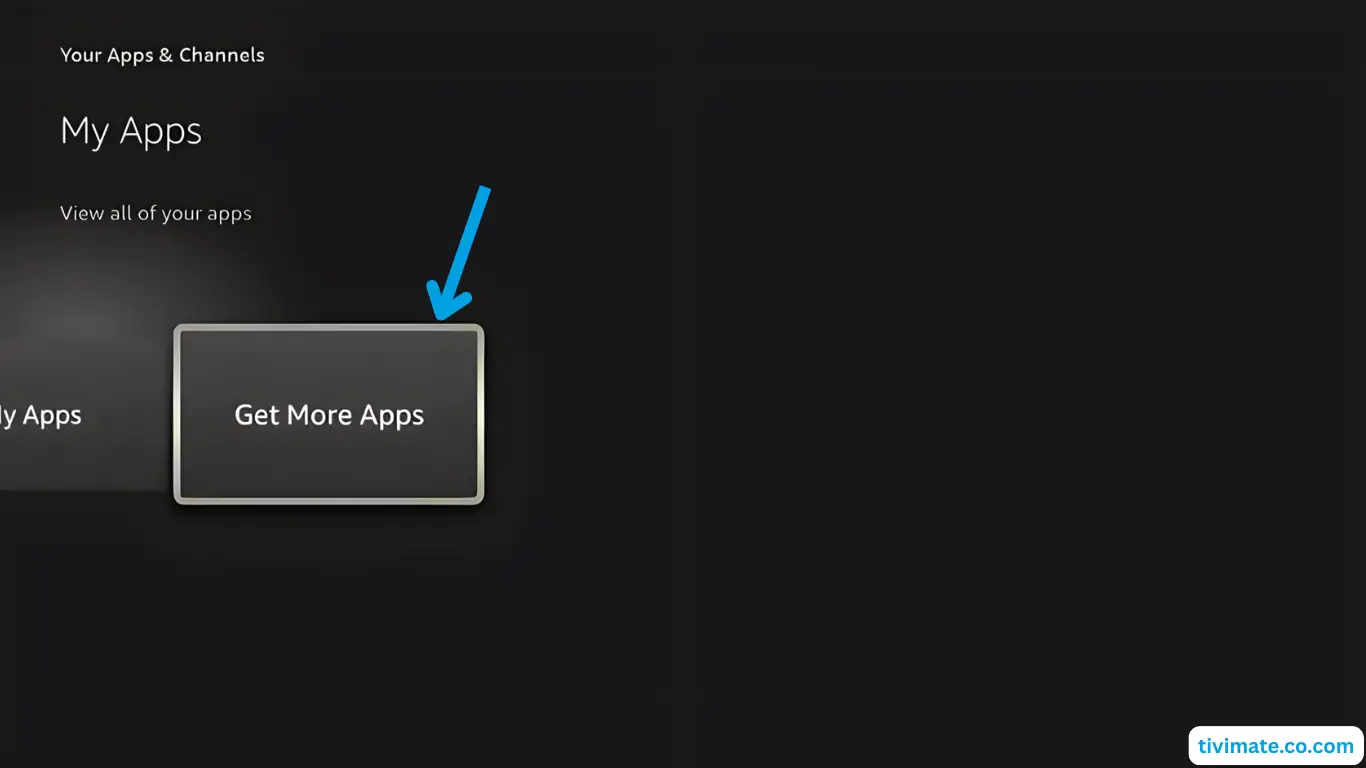
- Select Get more apps
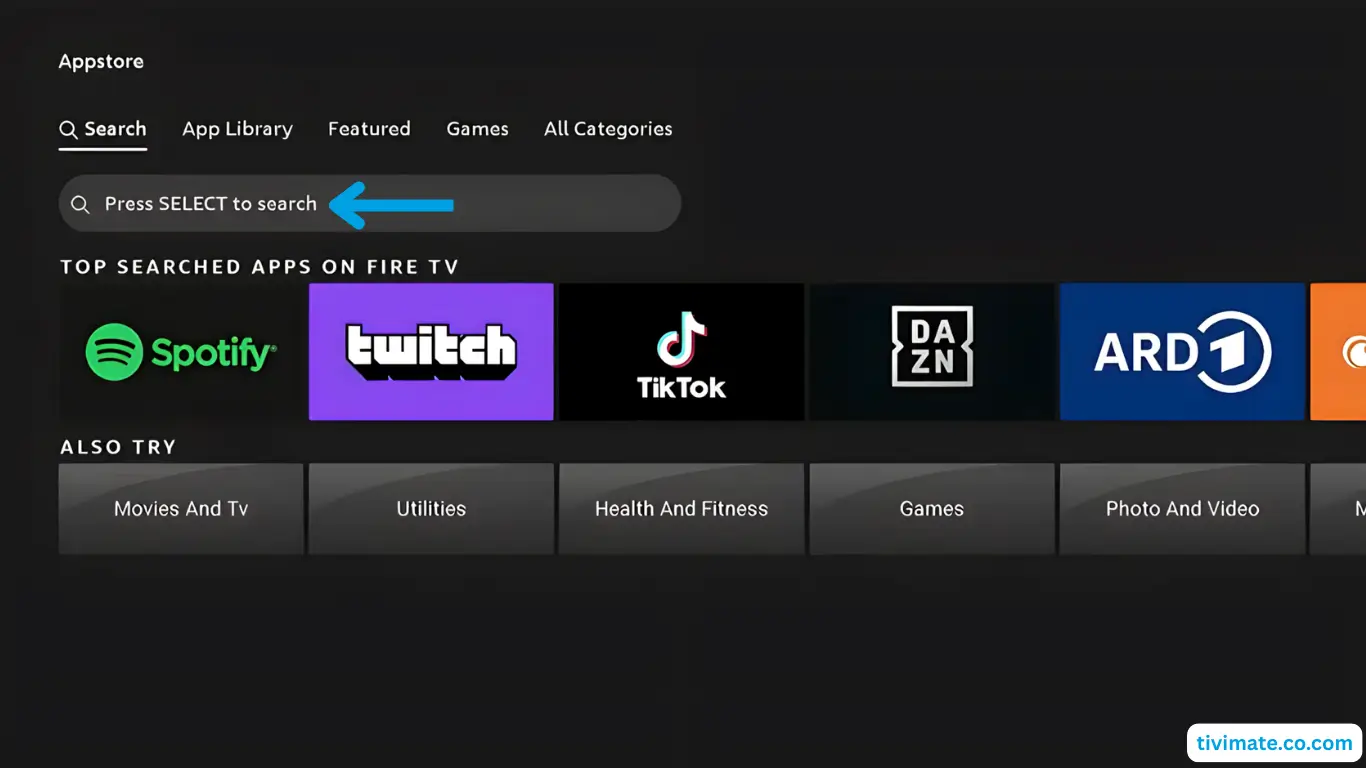
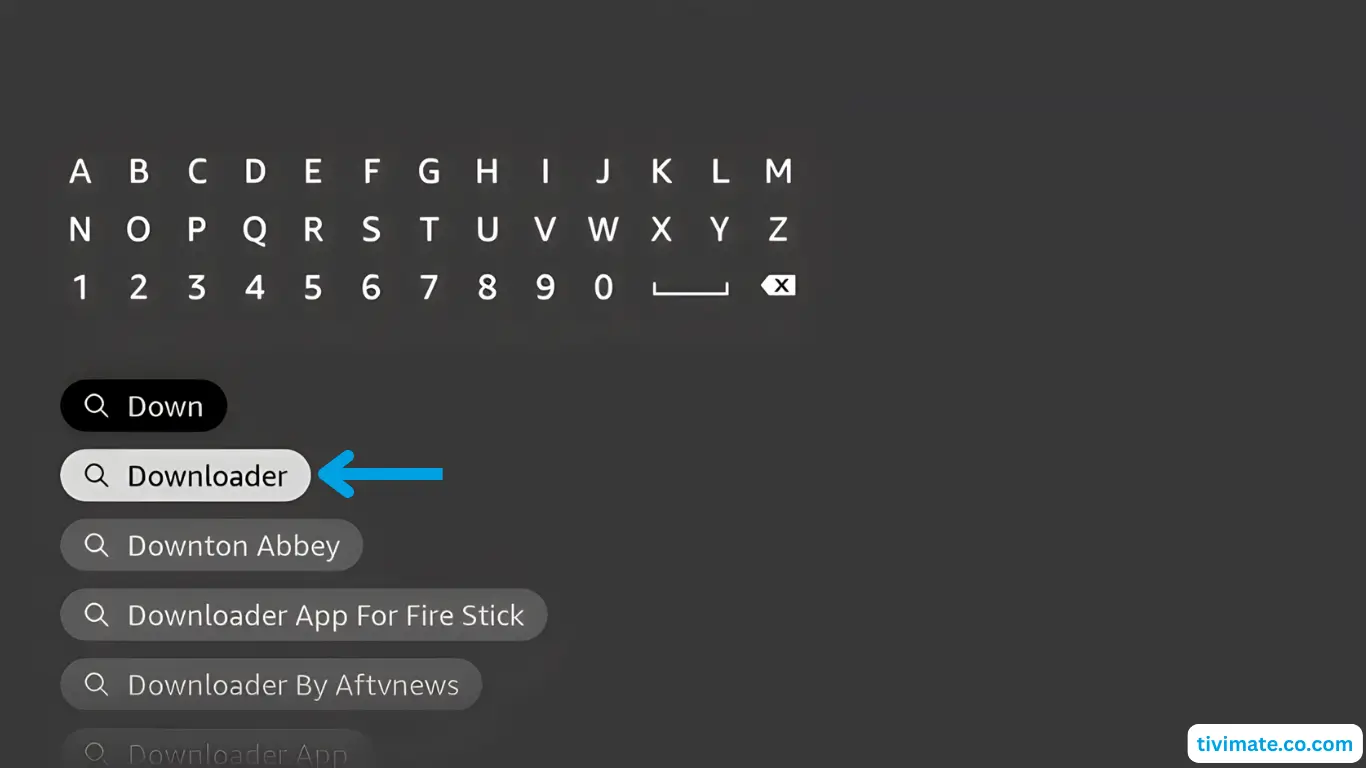
- Choose Search, press Down, then OK. Type Downloader
- When results show, select Downloader and press OK
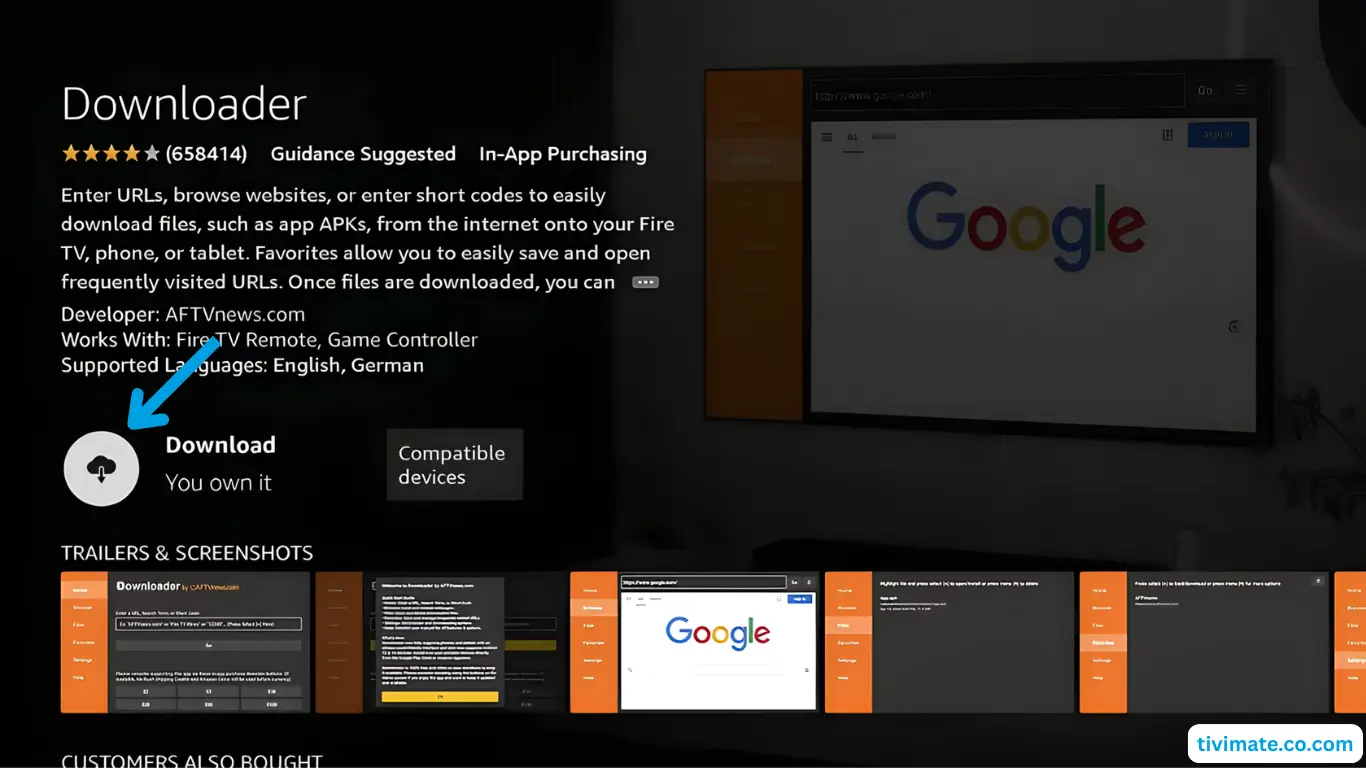
- Choose Downloader → Download
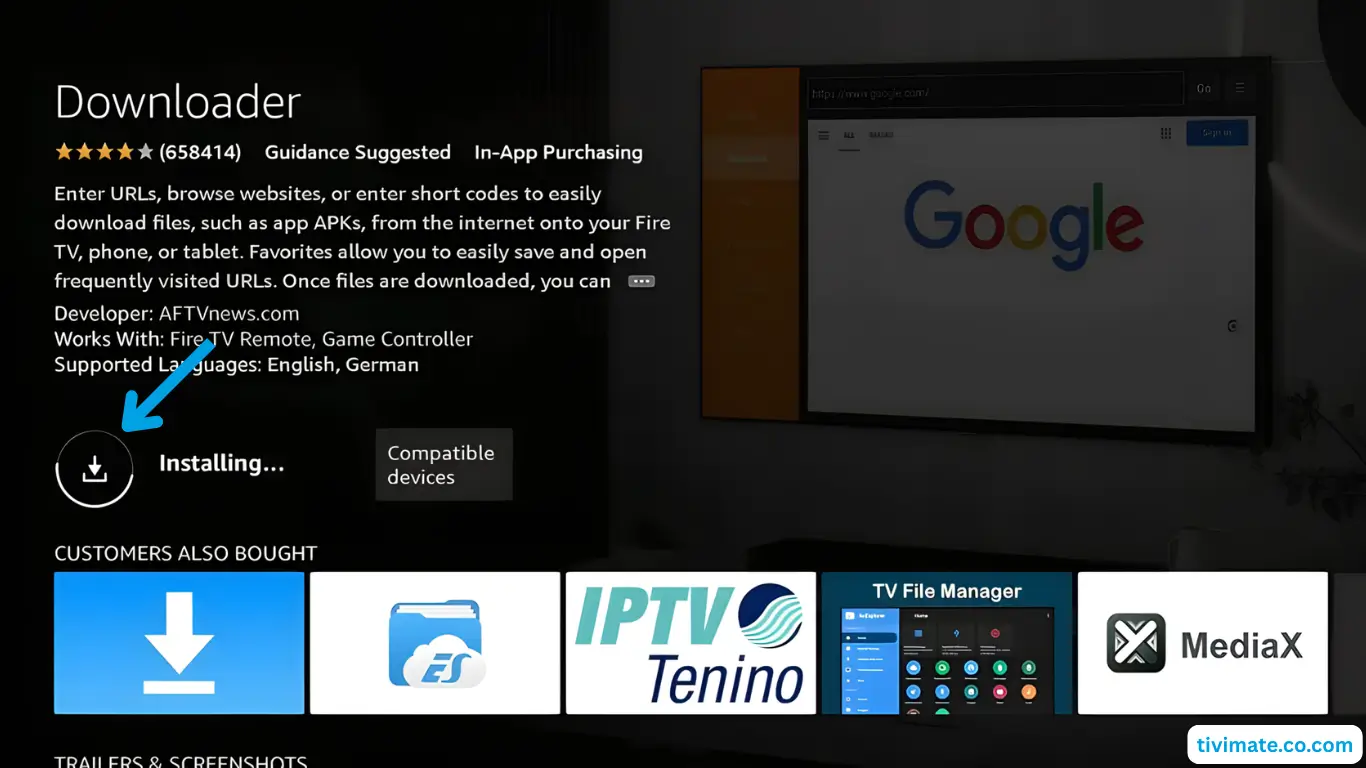
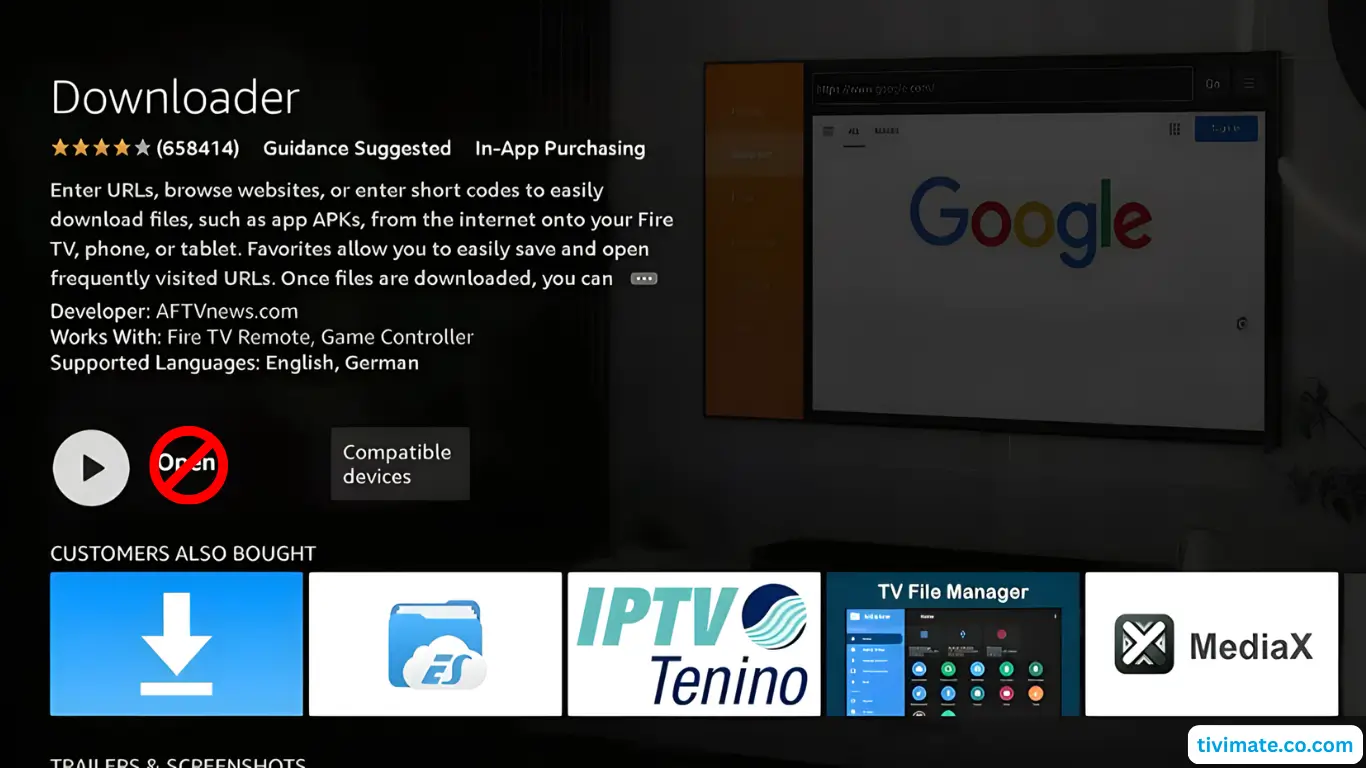
- Wait for it to download and install
- Do not open it yet. Press Back to the Home screen
Part 2: Enable Developer Options & Unknown Sources
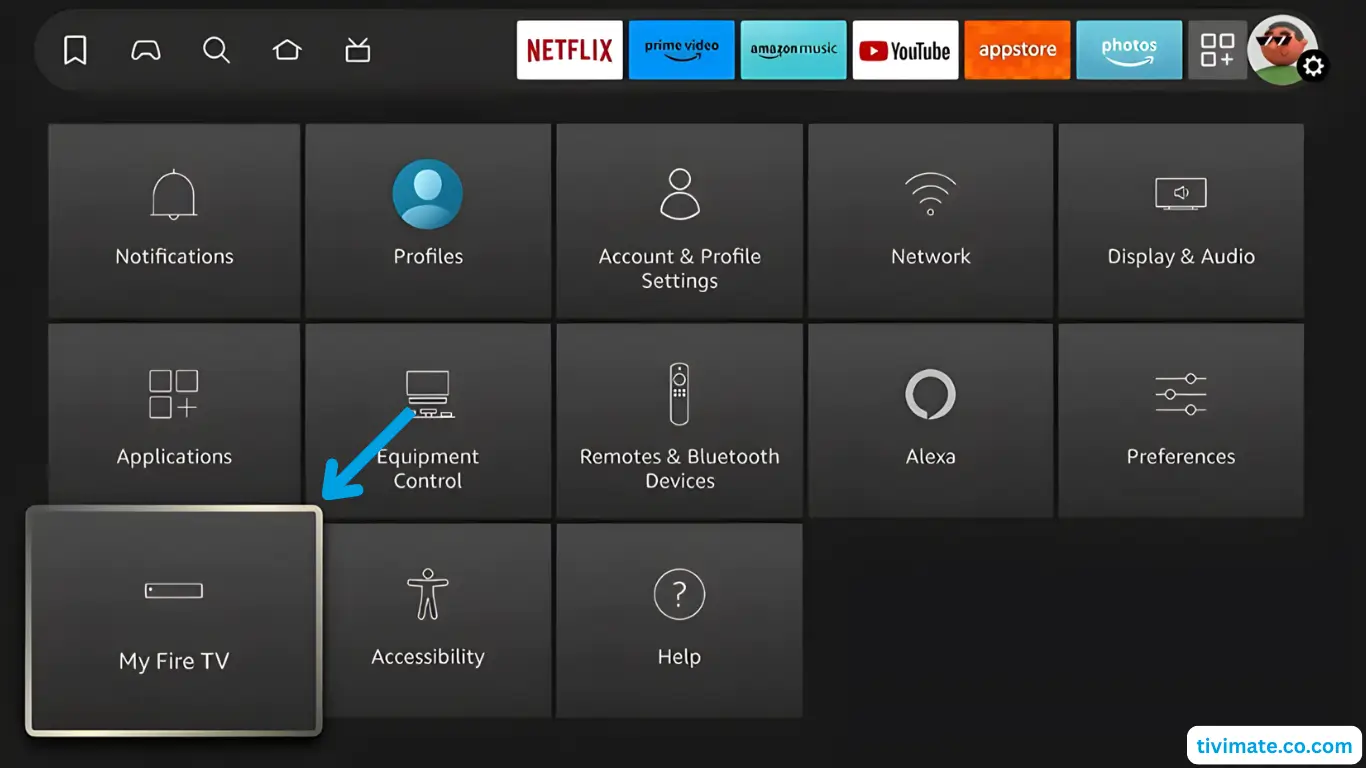
- Go to Settings → My Fire TV
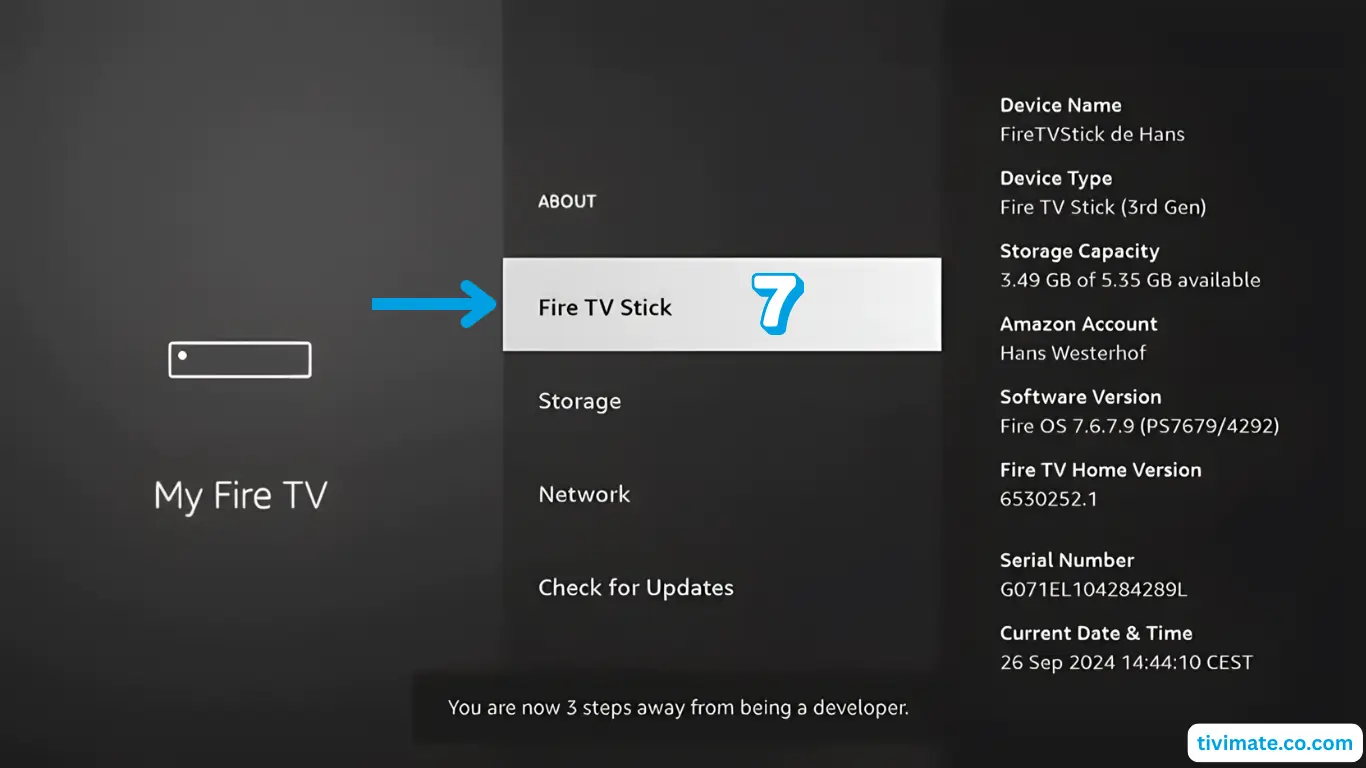
- Open About and click Fire TV Stick 7 times to enable Developer Options
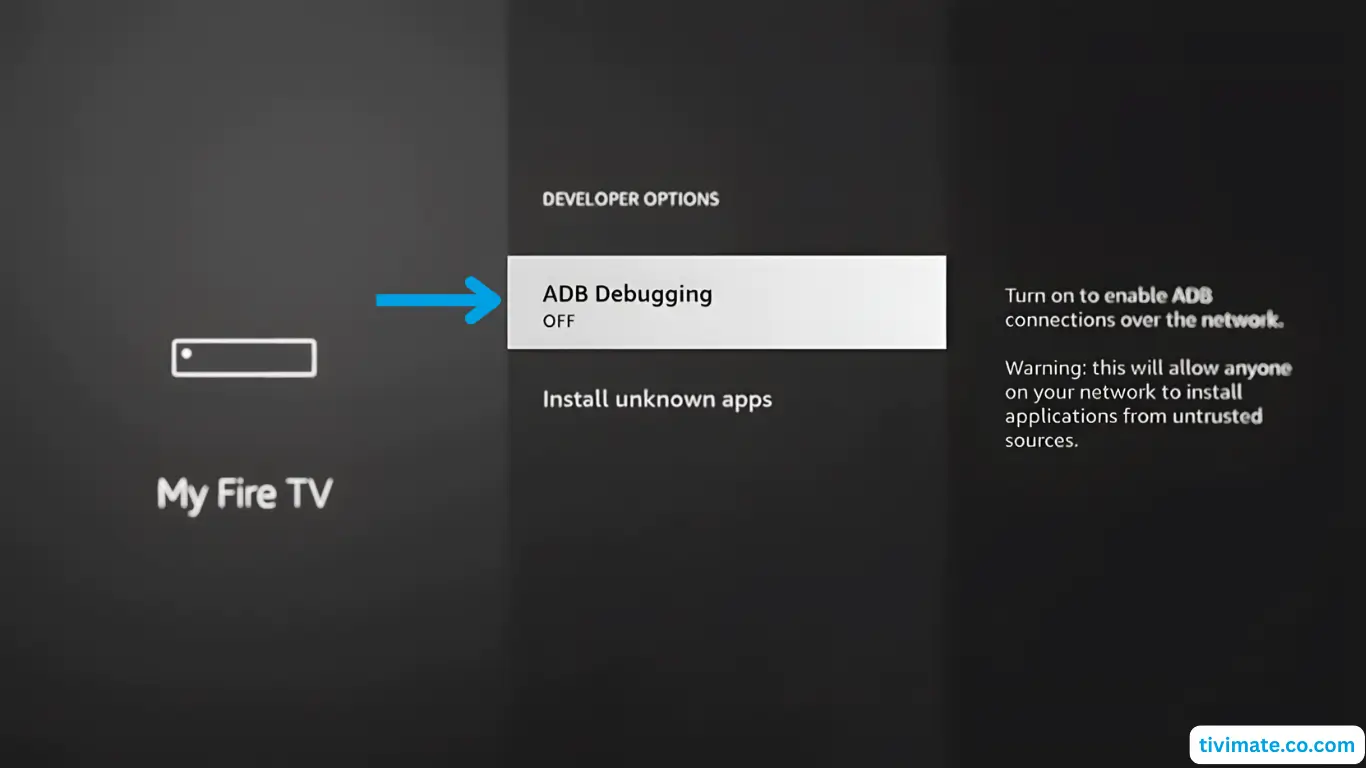
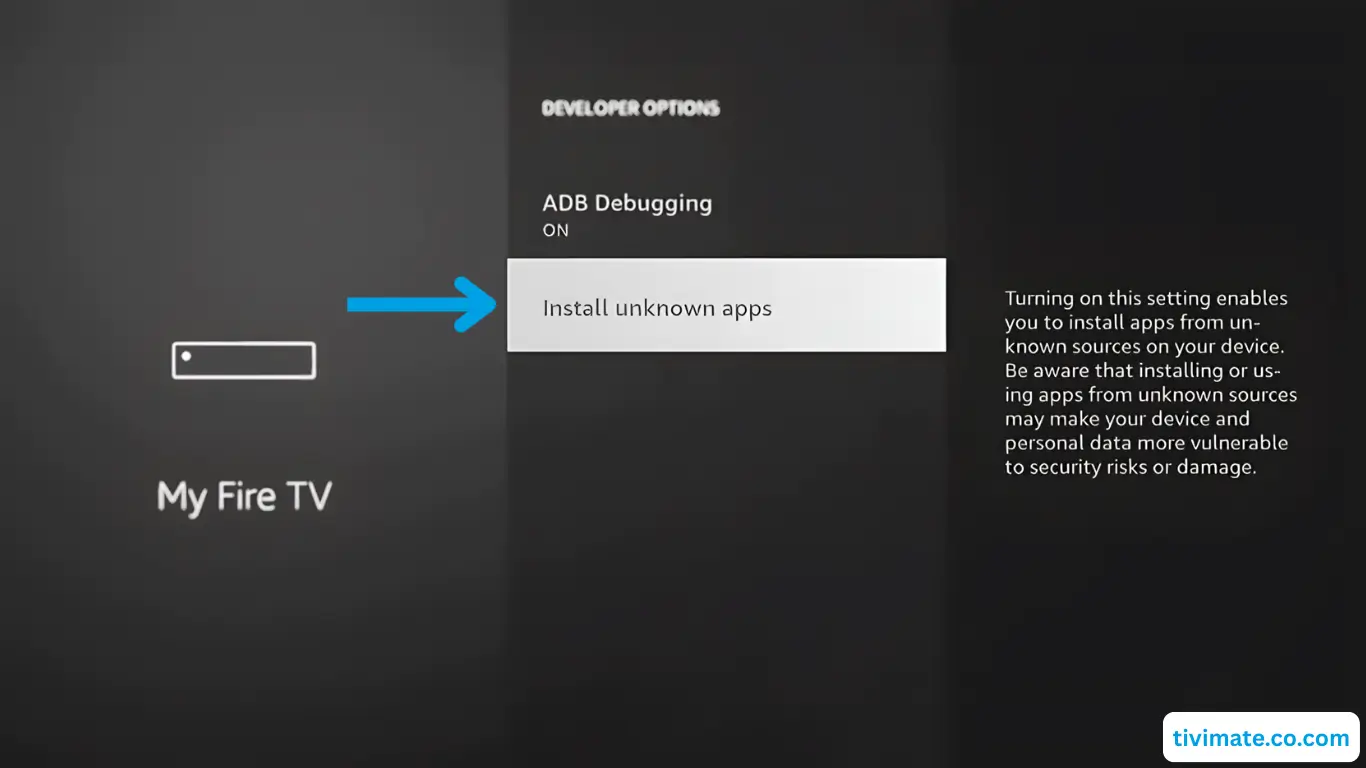
- Press Back → Developer Options → enable ADB debugging
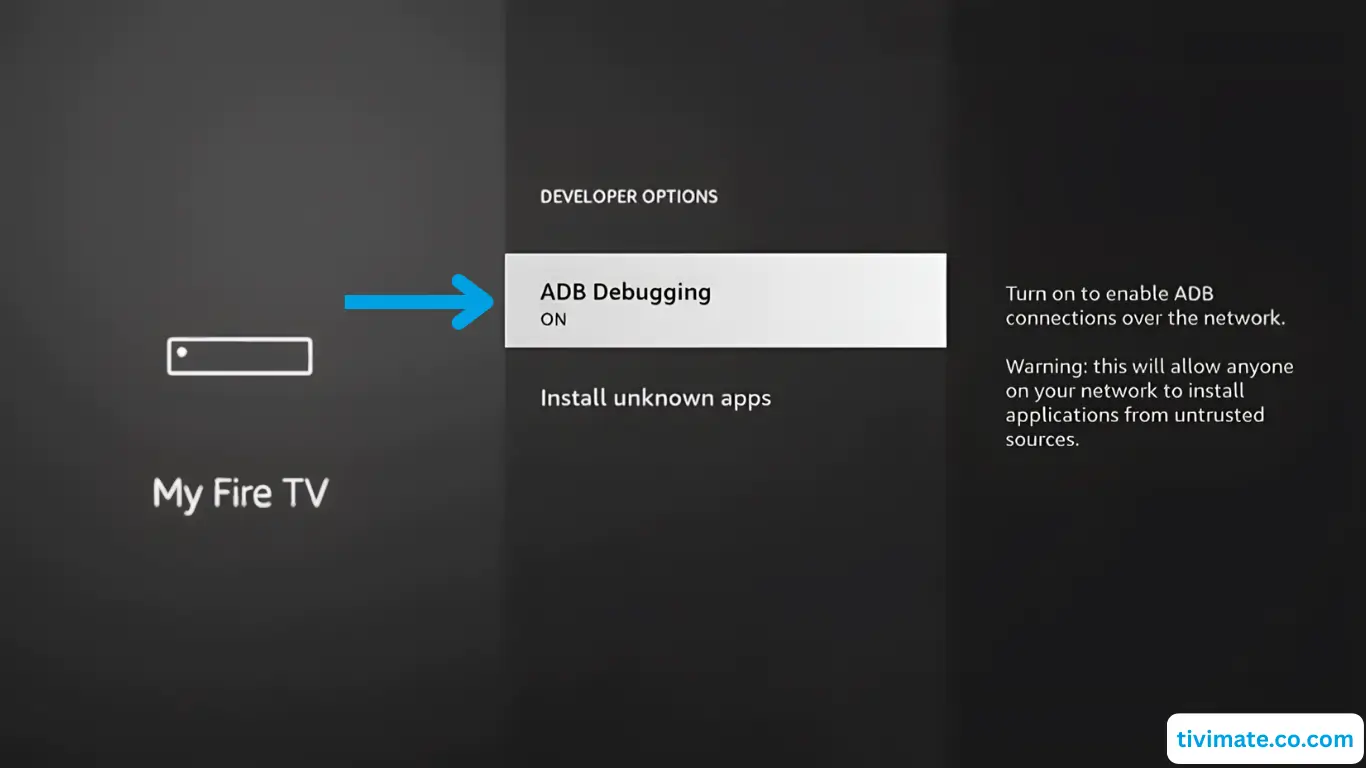
- Confirm ADB debugging is On
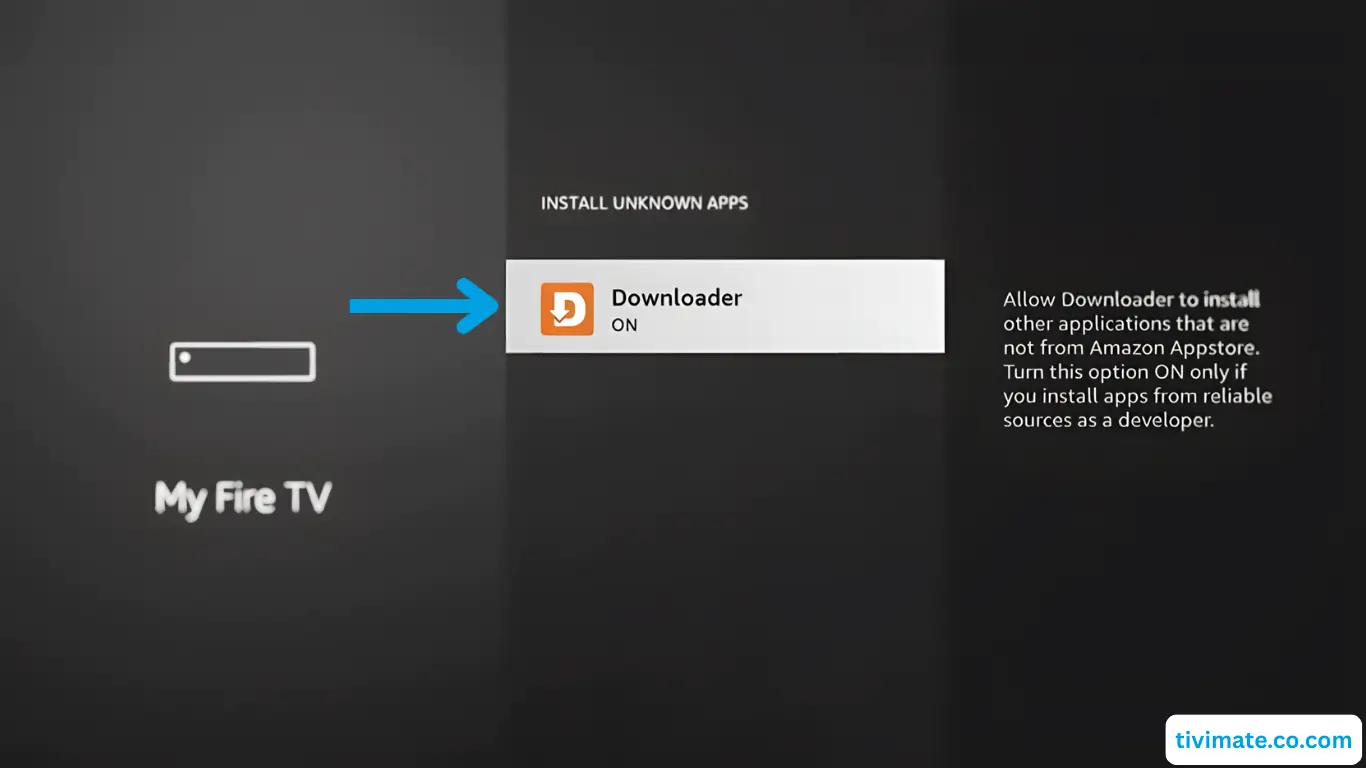
- Select Install Unknown Apps → give Downloader permission (press OK)
- Press the Home button to return home

Part 3: Install V12Mate via Downloader
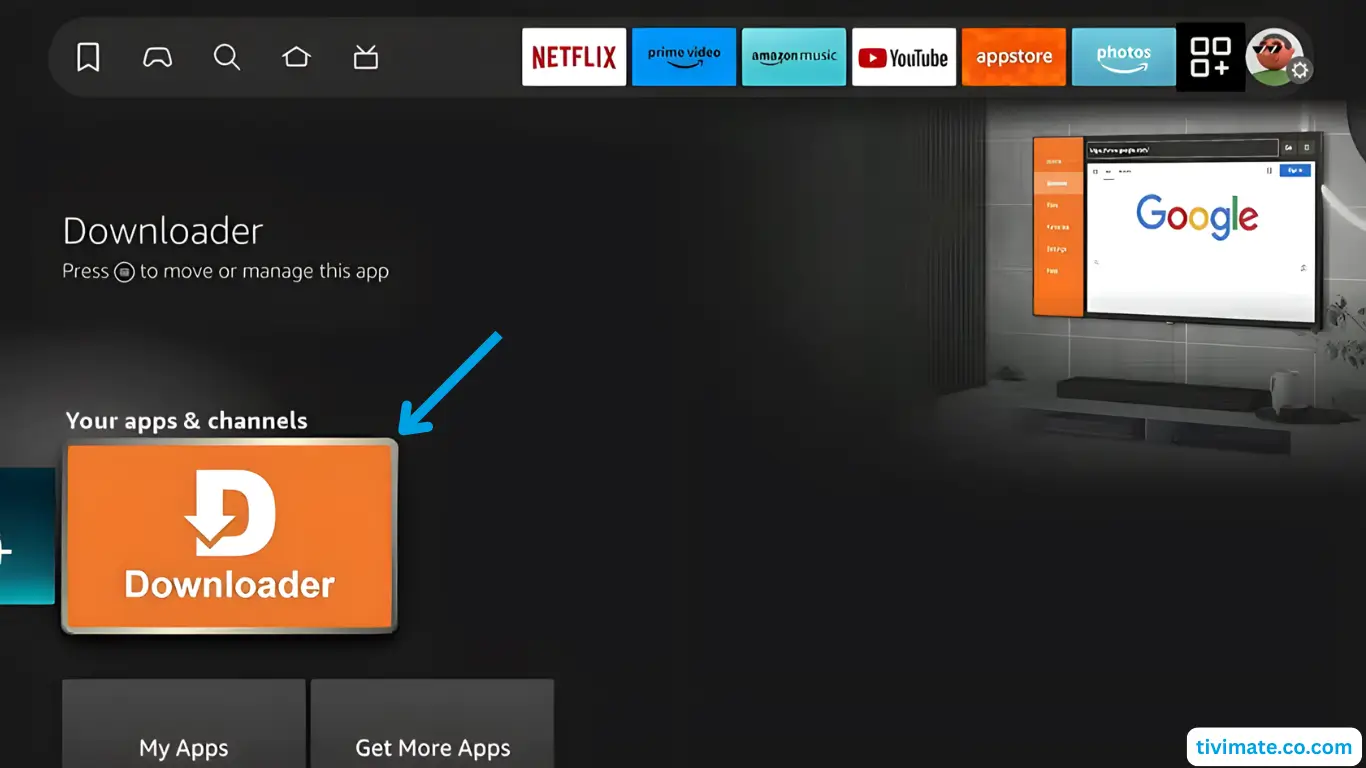
- Open Downloader
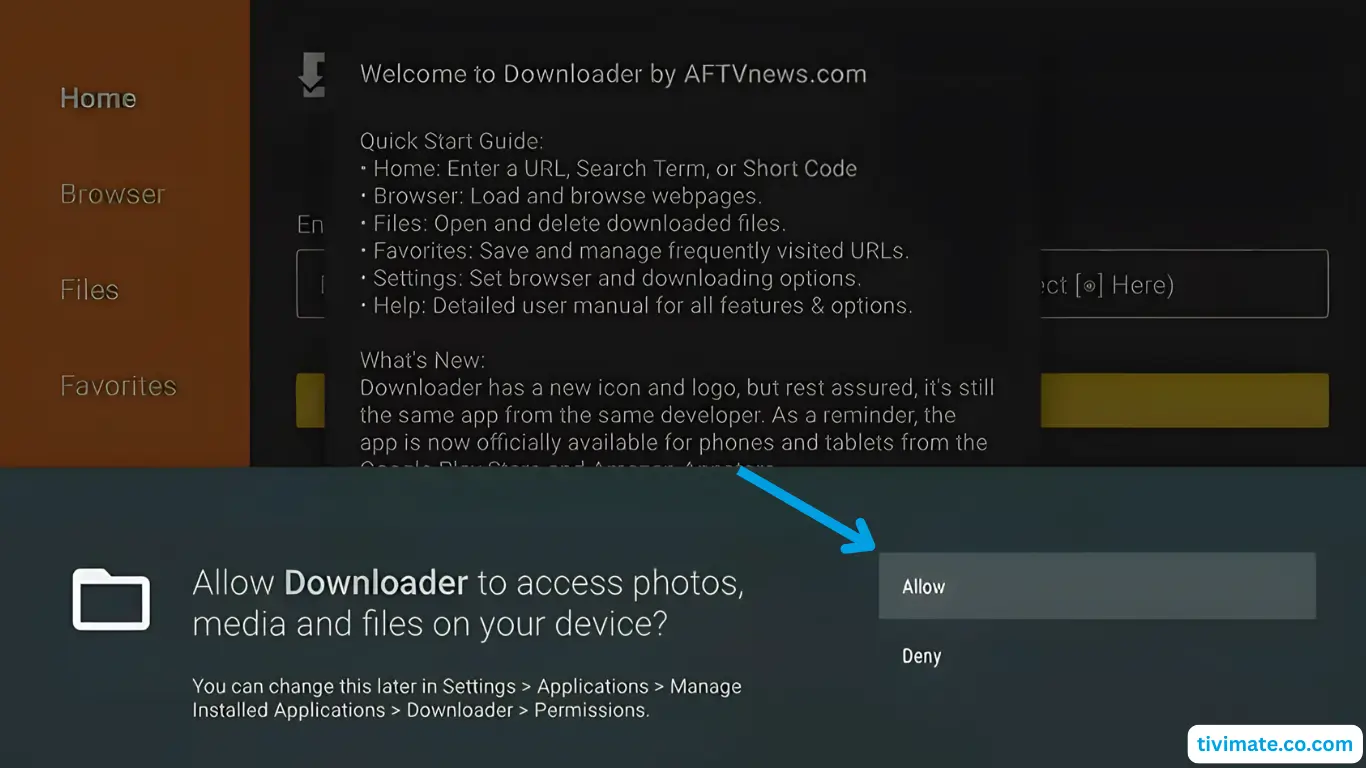
- Press Allow to grant file access
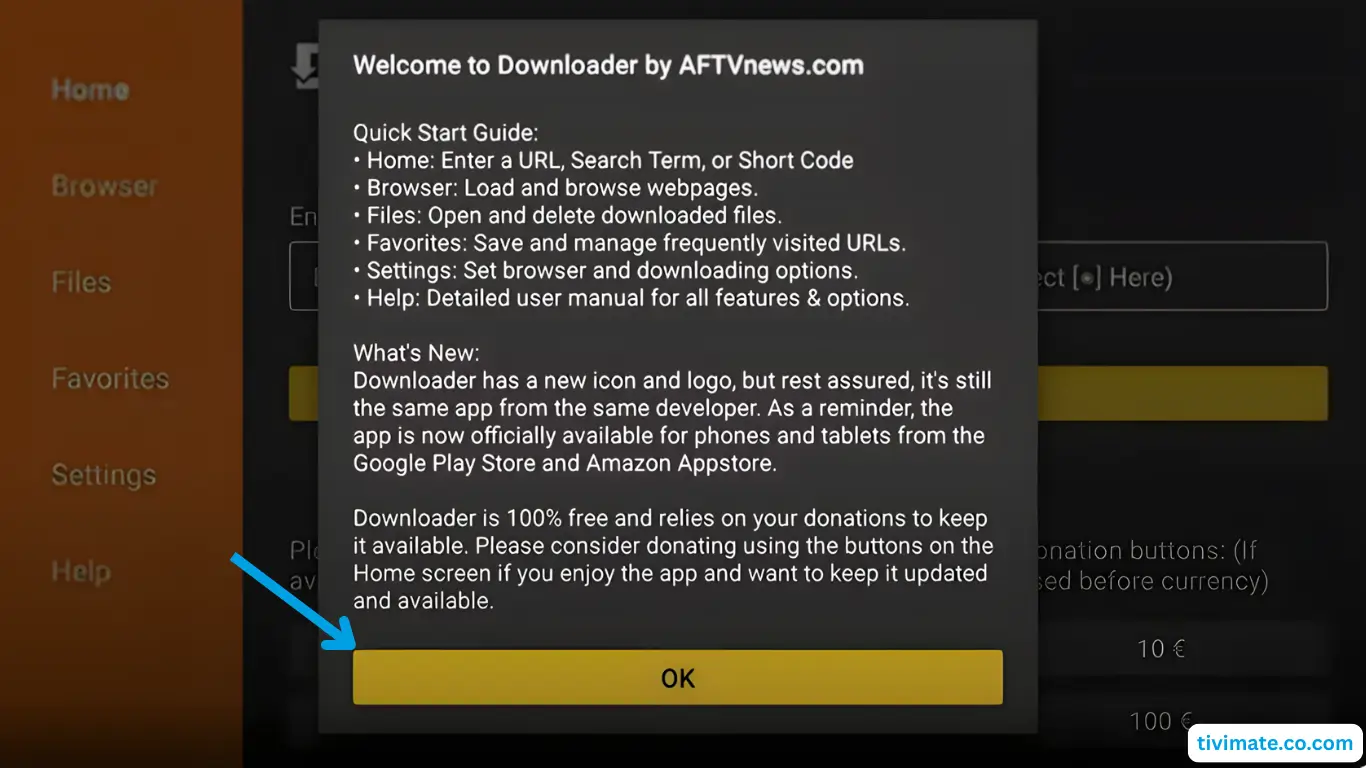
- Dismiss the welcome message (press OK)
- Enter the Downloader code for V12Mate: 2494311 → press GO

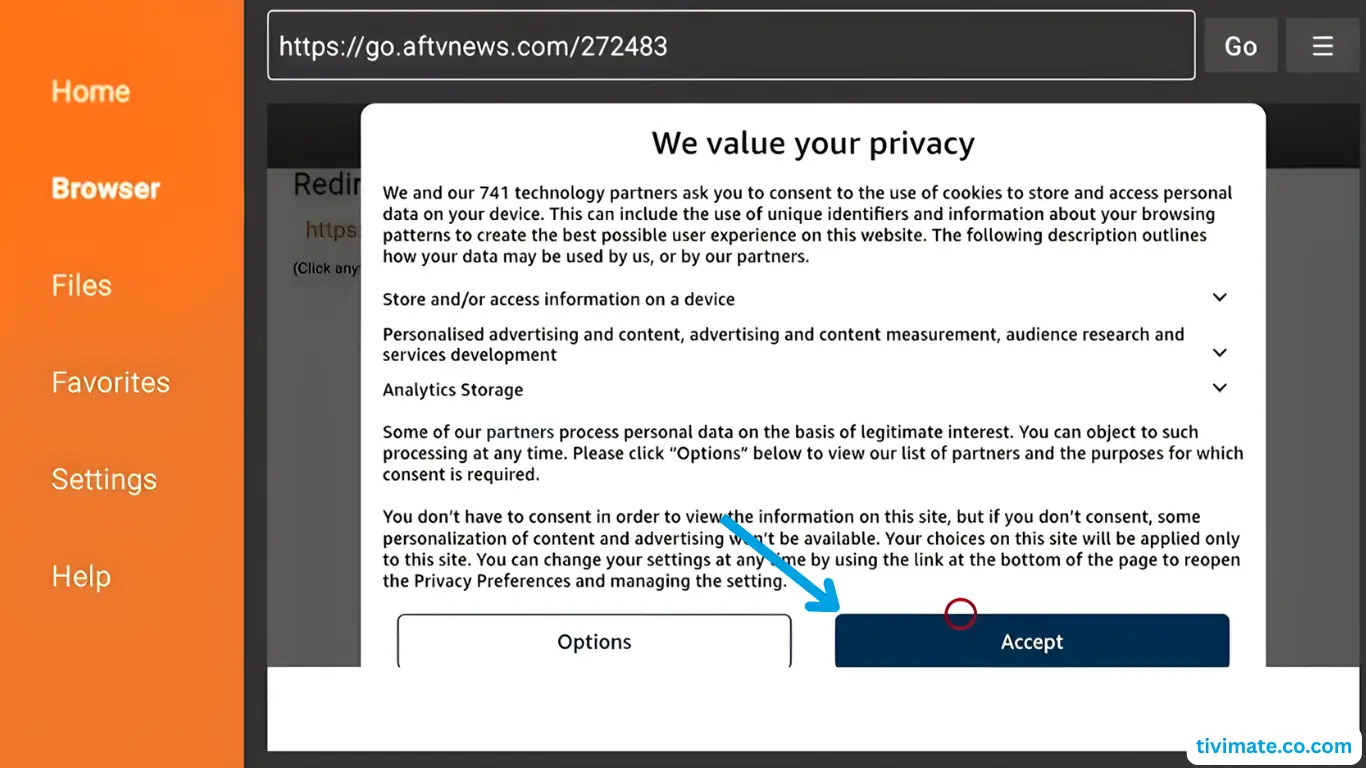
- Accept Privacy Policy → Install → confirm Install again if asked
- Press Install → wait until installed
- When complete, press OPENVery Important: If you already have Tivimate installed, please uninstall it first — otherwise V12mate will not install
- Press Add playlist
- Press V12MATEIf you only see “Cancel”, click this link to fix it CLICK HERE
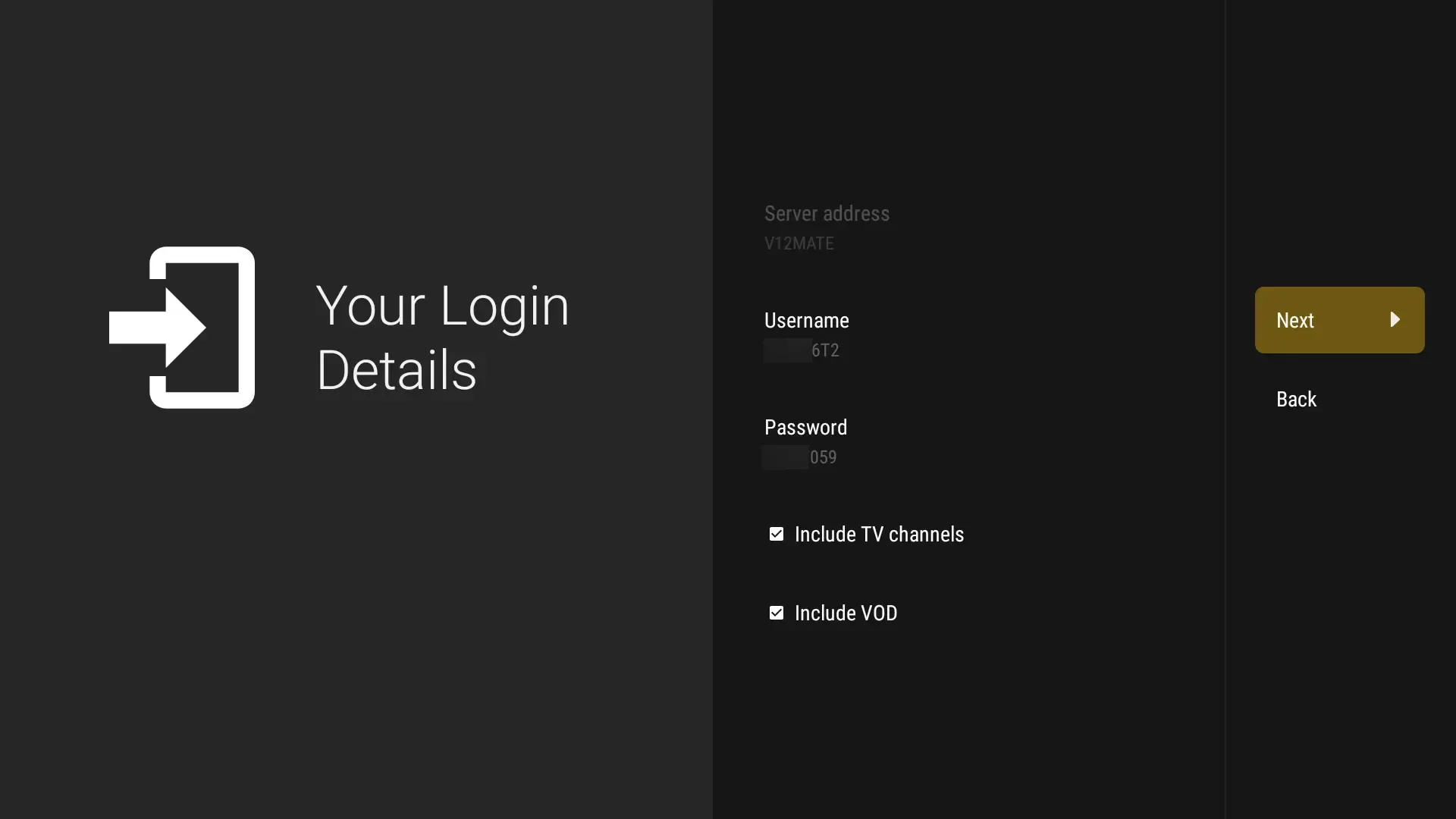
- Enter your Credentials – (No Server Address is needed since it’s our player.)
- Press Next, Make sure to keep VOD and TV channels selected
- Wait for it to process, (about 1 minute)
- Press Done, wait few seconds. You’re ready to watch!If No Channels Load And Content Count Doesn’t Show, Your Login Details Are Wrong. Go to Settings → Playlists → V12Mate → Xtream Codes Parameters and double-check your username and password, including capital letters. If they’re incorrect, no channels will appear





Method 1: Using Downloader App
- Search for Downloader in the Play Store and tap Install

- Press Allow when prompted
- Click OK to confirm and proceed
- Downloader is ready — now install V12Mate
- Enter the Downloader code for V12Mate: 2494311 → press GO
- Accept Privacy Policy → Install → confirm Install again if asked
- Press Install → wait until installed
- When complete, press OPENVery Important: If you already have Tivimate installed, please uninstall it first — otherwise V12mate will not install
- Press Add playlist
- Press V12MATEIf you only see “Cancel”, click this link to fix it CLICK HERE
- Enter your Credentials – (No server URL is needed since it’s our player.)
- Press Next, Make sure to keep VOD and TV channels selected
- Wait for it to process, (about 1 minute)
- Press Done, wait few seconds. You’re ready to watch!If No Channels Load And Content Count Doesn’t Show, Your Login Details Are Wrong. Go to Settings → Playlists → V12Mate → Xtream Codes Parameters and double-check your username and password, including capital letters. If they’re incorrect, no channels will appear


Method 2: Google Play Store (If V12Mate doesn’t work for you)
- Open Google Play Store on your Android TVVery Important: VOD on TiviMate only works with their Premium. Our service (trial & subscription) already has VOD built in.
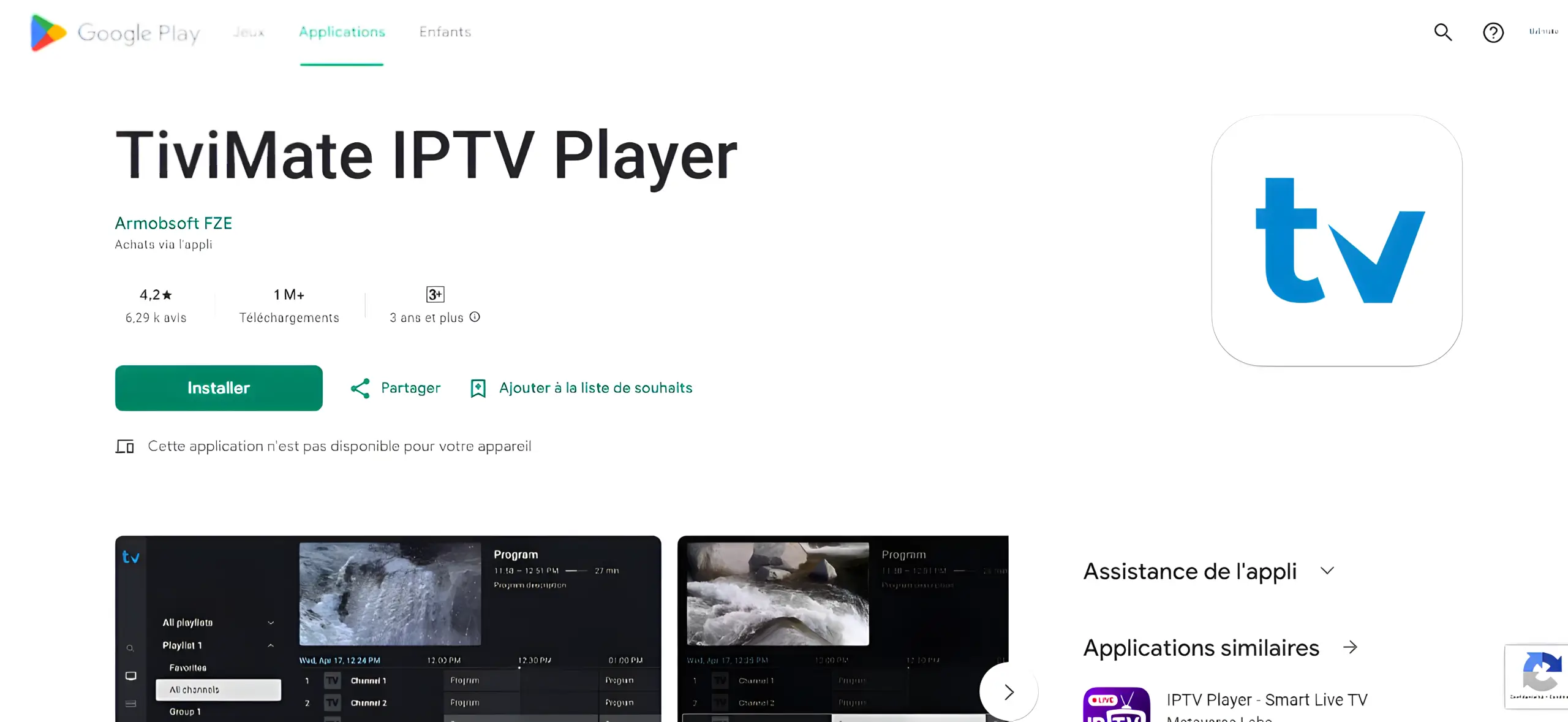
- Search for TiviMate IPTV Player and click Install
- Open TiviMate, select Add Playlist, choose Xtream Codes
- Enter your IPTVV credentials (Server URL, Username, Password)
Method 1: iMPlayer Setup (Recommended)
- Download iMPlayer – IPTV Player from Google Play Store:
Download from Google Play Store
- Open the app and click on “Add a Playlist”
- Select playlist type “XC API”
- Fill in your details:
• Playlist Name: Choose any name you want
• Portal URL: Enter the server URL we sent you by email
• Username & Password: Use the credentials provided in the email - Click “Add Playlist” wait until contents finish downloading and enjoy streaming!

Method 2: TiviMate Mobile Setup (Google Play)
- Open Google Play Store and search for TiviMate IPTV PlayerVery Important: VOD on TiviMate only works with their Premium. Our service (trial & subscription) already has VOD built in.
- Tap Install and wait for completion
- Open TiviMate, tap Add Playlist
- Select Xtream Codes or M3U Playlist based on what your provider gave you
- Enter IPTVV credentials:
• Server: Your provider’s server URL
• Username: Your username
• Password: Your password
Then tap Next - Wait for channels to load, then start watching!
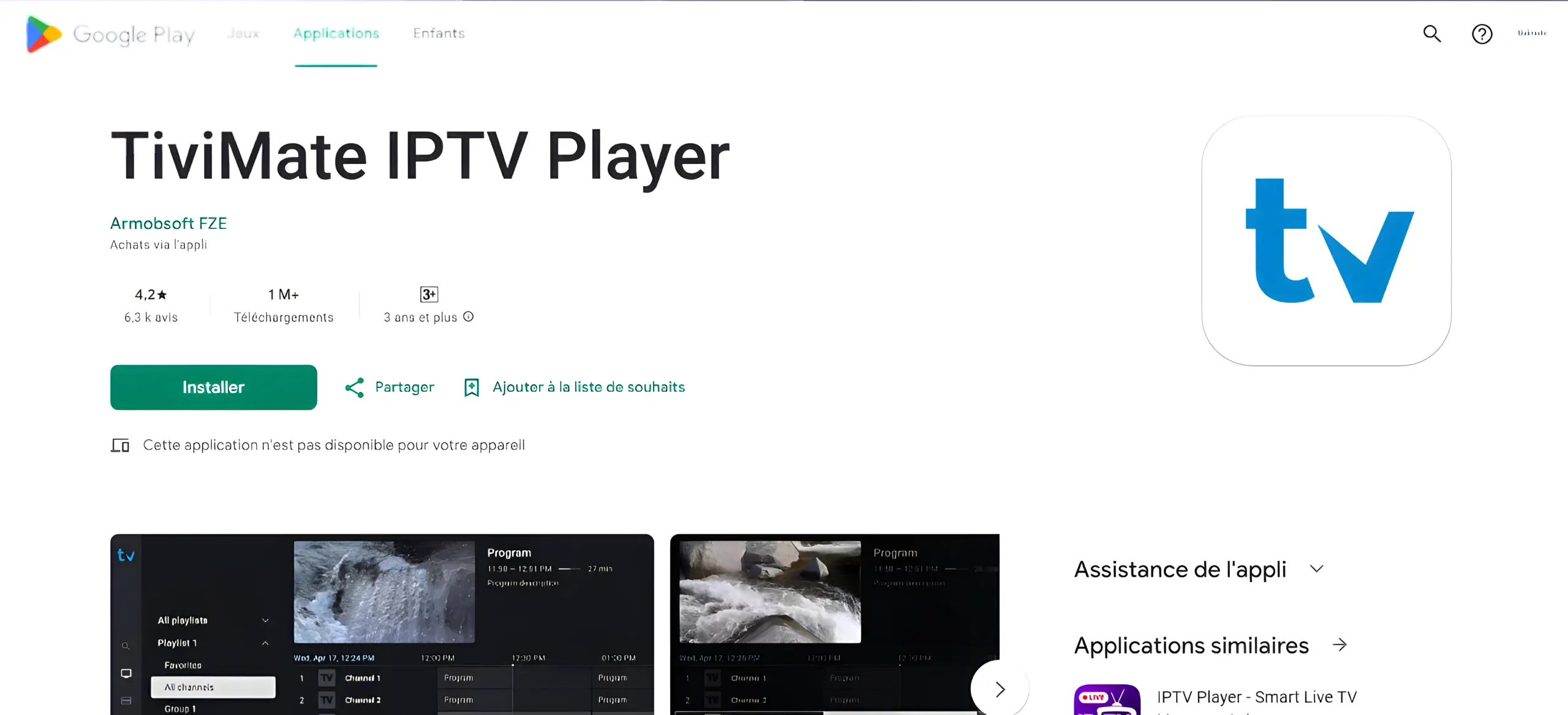
Method 3: Official APK Installation
Use this if TiviMate doesn’t appear in Play Store on your device.
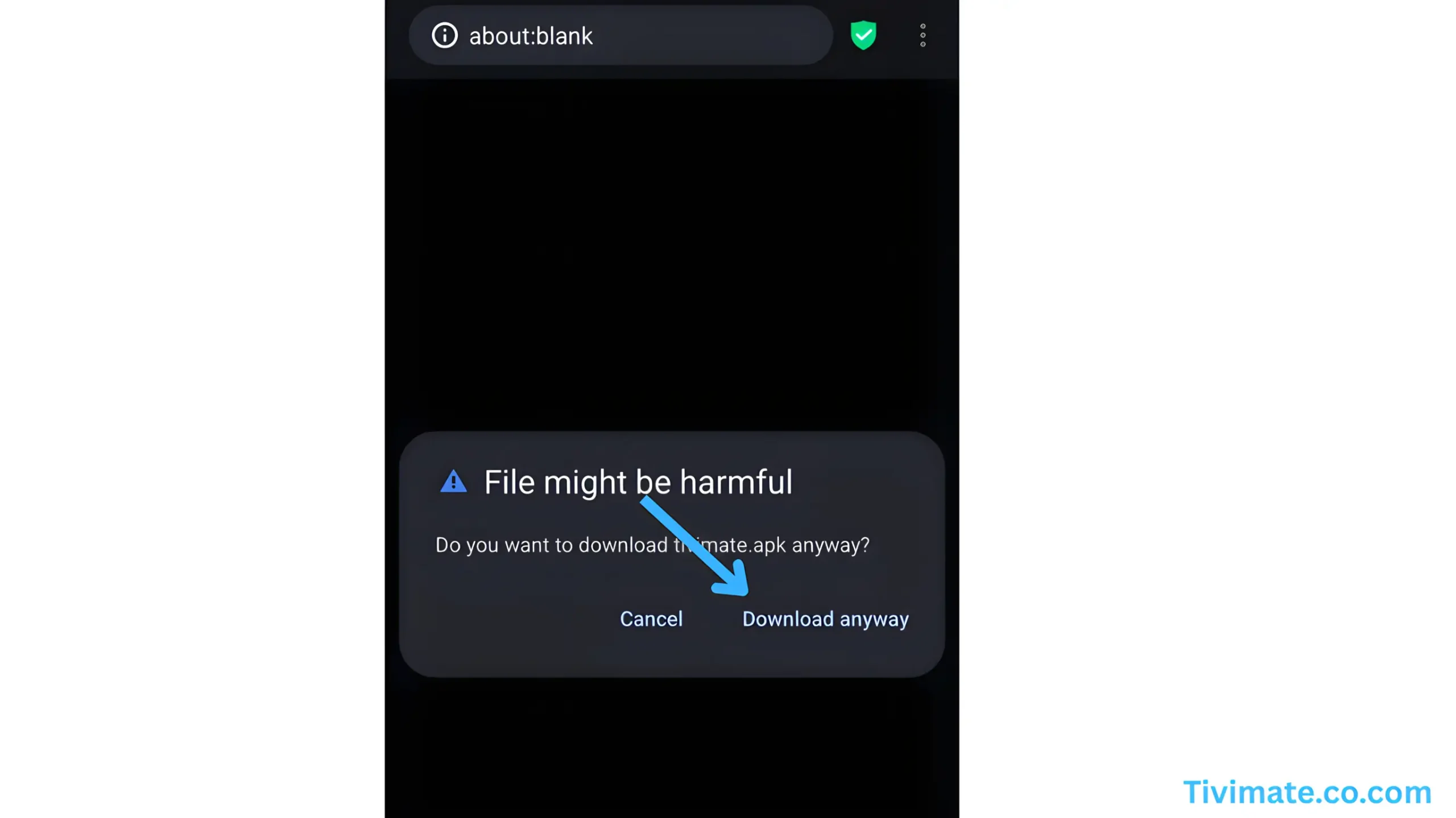
- Go to the official site: tivimate.com and download the APK
- Allow installs from unknown sources if prompted (Settings > Security)
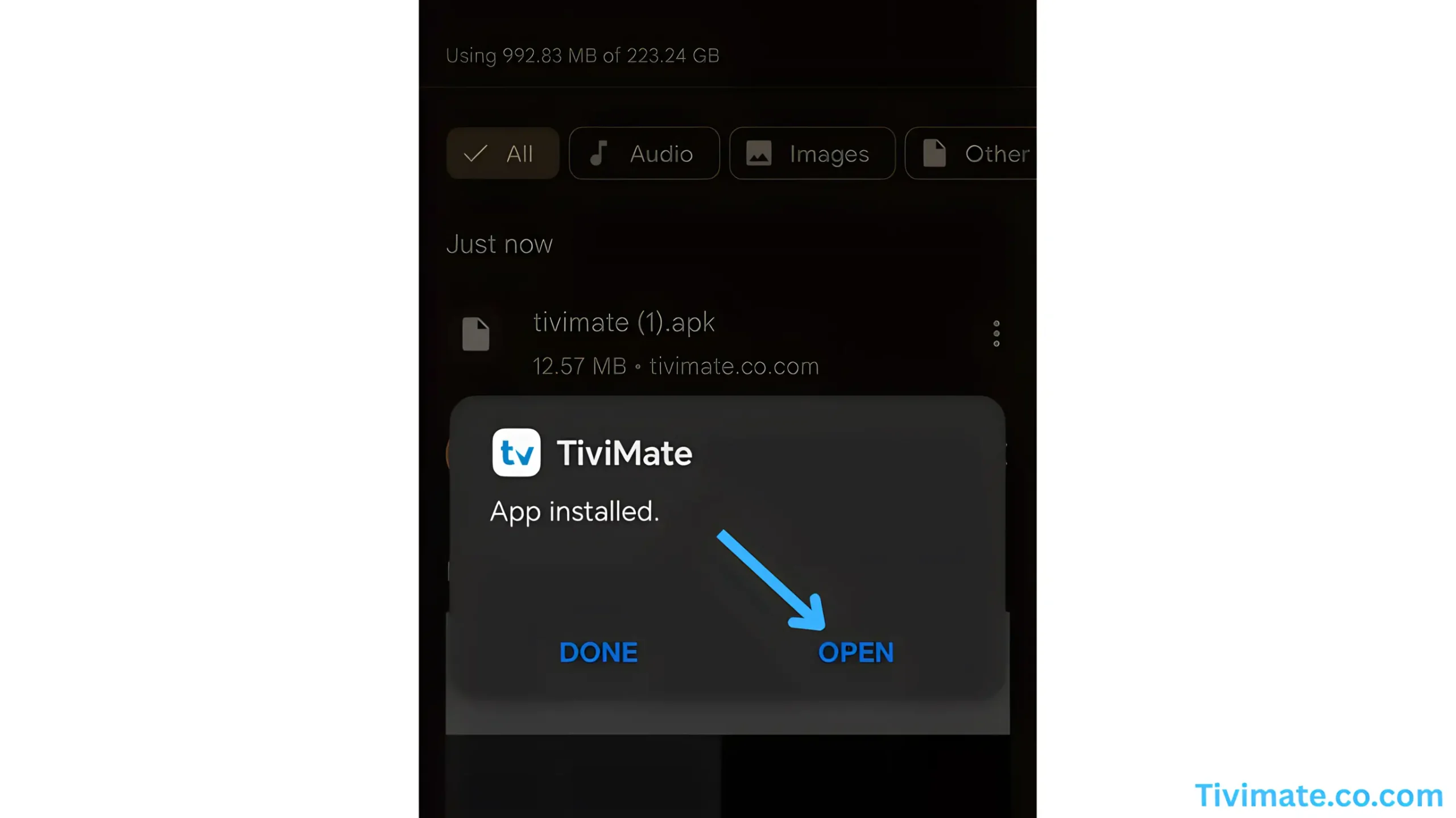
- Open the file to install TiviMate, then launch the app
- Follow the same steps as above to add your IPTV playlist
Method 1: iMPlayer Setup (Recommended)
- Download iMPlayer – IPTV Player from App Store:
Download from App Store
- Open the app and click on “Add a Playlist”
- Select playlist type “XC API”
- Fill in your details:
• Playlist Name: Choose any name you want
• Portal URL: Enter the server URL we sent you by email
• Username & Password: Use the credentials provided in the email - Click “Add Playlist” wait until contents finish downloading and enjoy streaming!

Method 2: Smarters Player Lite Setup
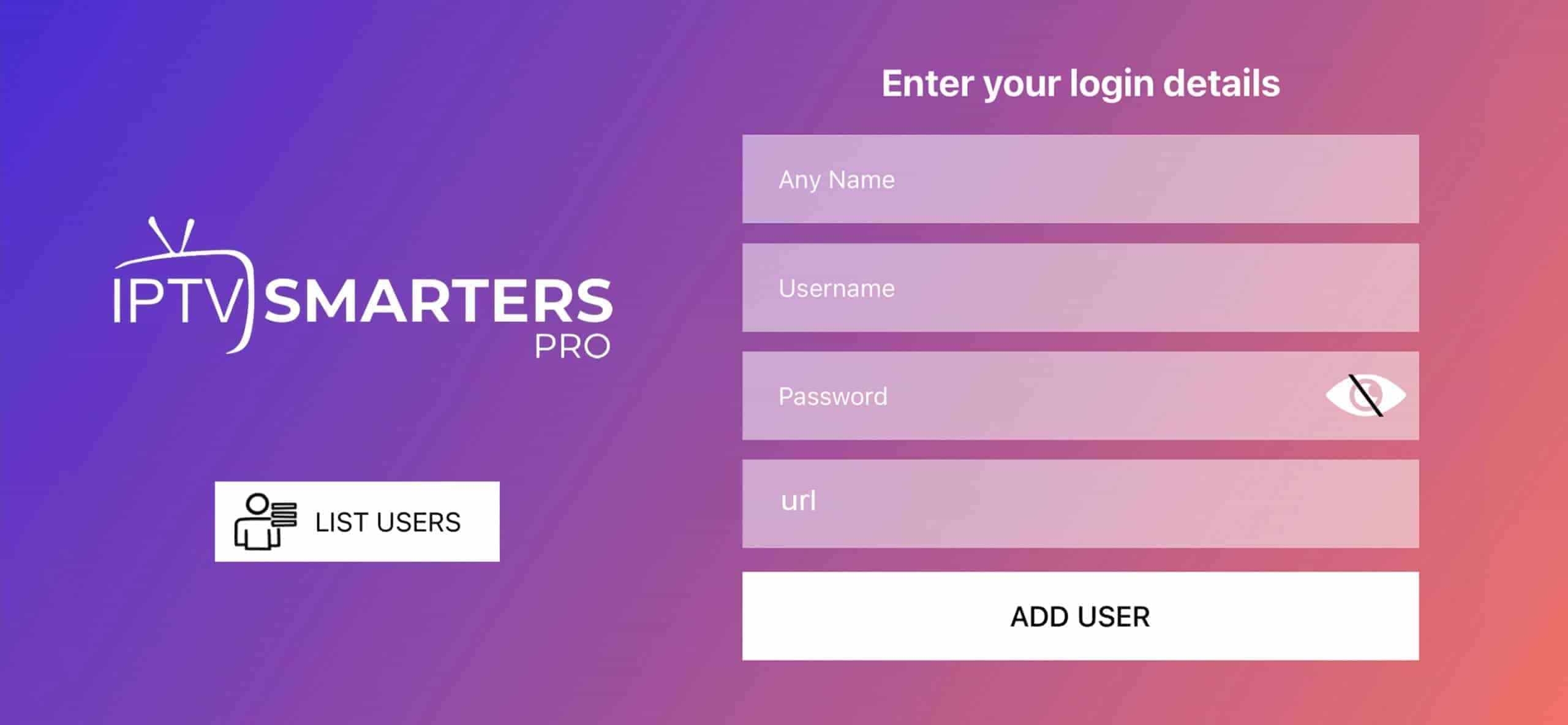
- Open app and tap Add User, select Login with Xtream Codes API

- Use the login details provided to you after subscribing. Then click on “ADD USER” to continue
- Wait a few seconds for the app to process your details
- Tap the “Live TV” icon to start watching
- Select the channel category you want to browse and tap a channel name to play it
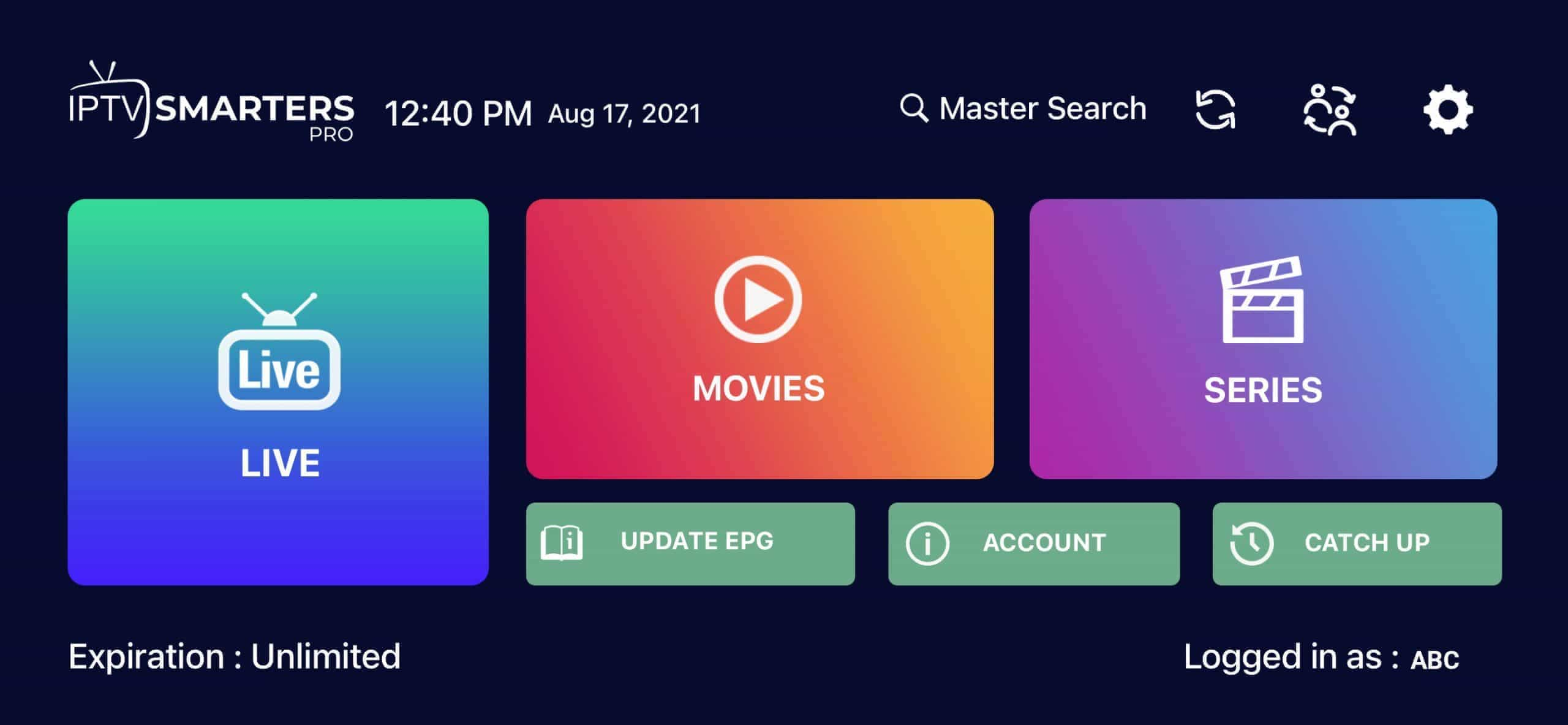
For Samsung Smart TV
Step 1 : Press the Smart Hub button from your remote.
Step 2 : Search for the IPTV Smarters Pro to install.
Step 3 : Log in the Application with your subscription details i.e. Username, Password, Portal URL.
For LG Smart TV
Step 1 : Press the Home button on the remote & Go to LG Content Store.
Step 2 : Search for the IPTV Smarters Pro to install.
Step 3 : Log in the Application with your subscription details i.e. Username, Password, Portal URL.
Step 1: Send us the MAC Address of your MAG via Whatsapp/Email/Live Chat
Step 2: After making the payment, we will send you the portal link
Method 1: IPTV Smarters Pro Setup
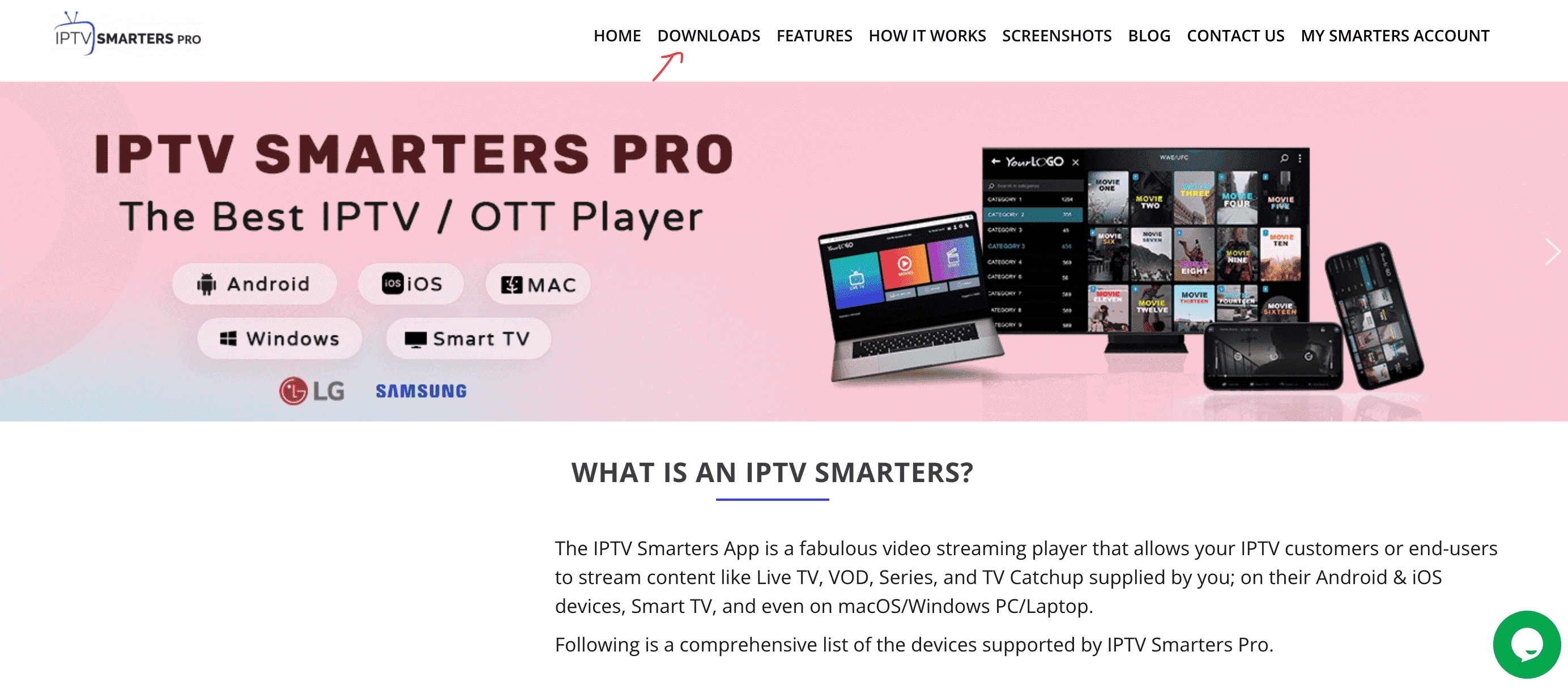
- Open a browser and type “IPTV Smarters Pro” into the search bar
- Go to the official website: https://www.iptvsmarters.com
- Click on the “Downloads” section in the website menu

- Download the Windows or Mac version of IPTV Smarters Pro

- Once the download completes, open the installer by clicking on the downloaded file
- If Windows asks for permission, click “Yes” to allow the app to install
- The installation will now begin. It typically takes under 2 minutes
- Once installed, launch the IPTV Smarters app. Click Add New User, then choose “Login with Xtream Codes API”
- Enter your IPTV account details: Username, Password, and Portal URL
- That’s it! You’re ready to start streaming with IPTV Smarters Pro

Method 2: MyIPTV Player (Windows 10/11)
This is a powerful media player with built-in EPG support for Windows 10, Windows Phone, and Xbox One.
Download from Microsoft Store
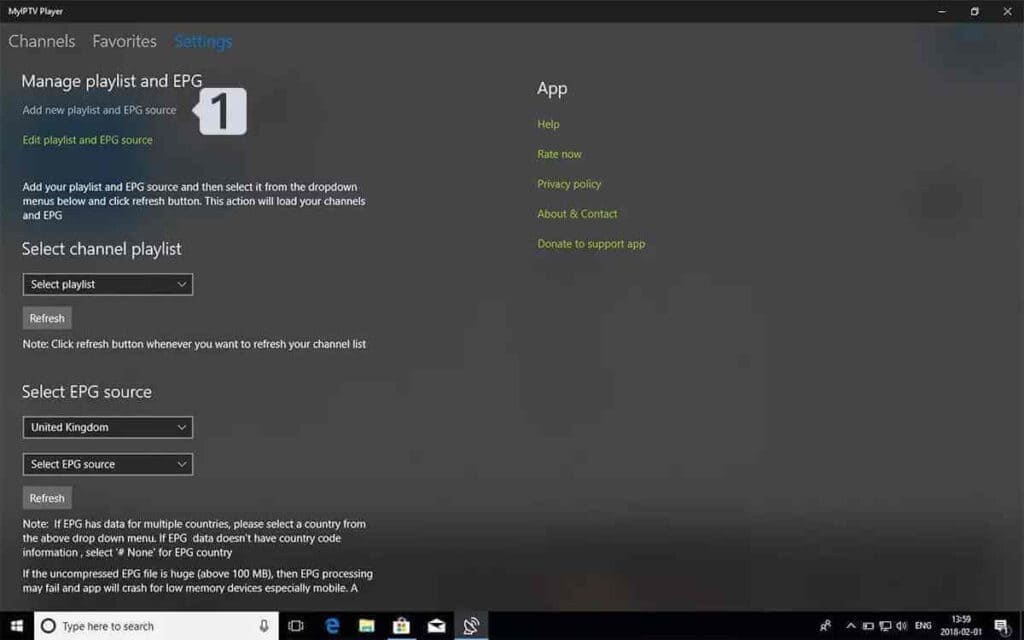
- Go to the Settings tab, then click on “Add new playlist and EPG source”

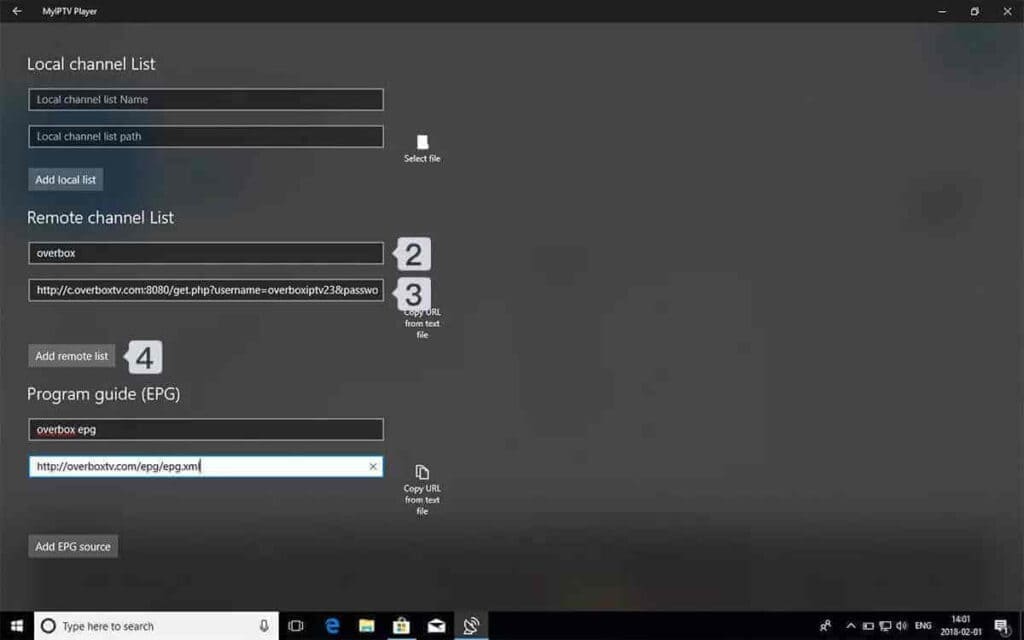
- Add your M3U playlist:
• Name: Give your playlist a name (e.g. “IPTVV”)
• URL: Paste the M3U link you received from your IPTV provider
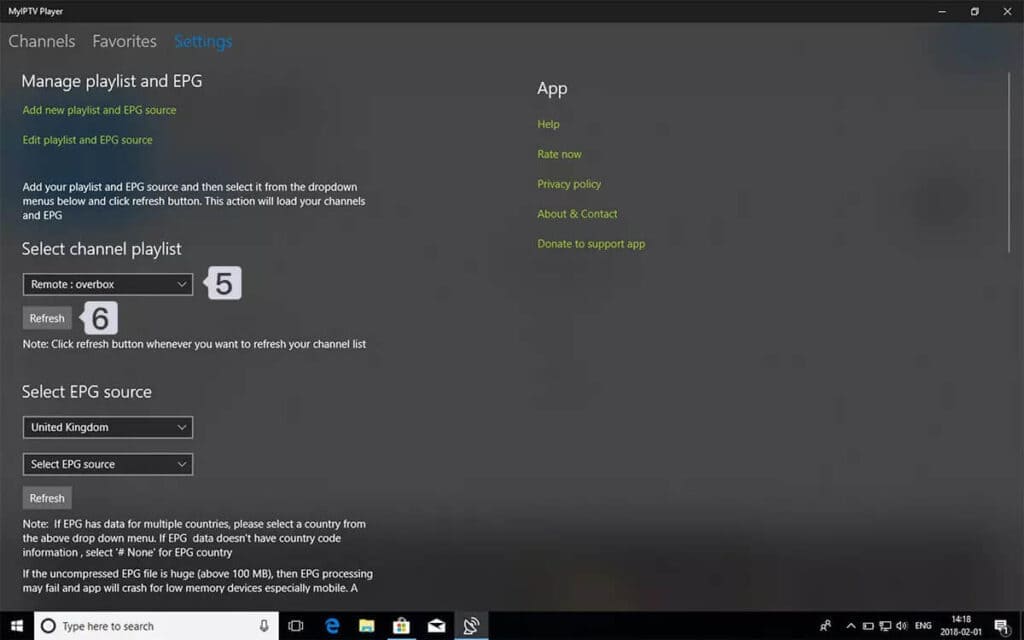
• Click on Add remote list - Go back to Settings and choose your playlist from the Select Channel Playlist dropdown
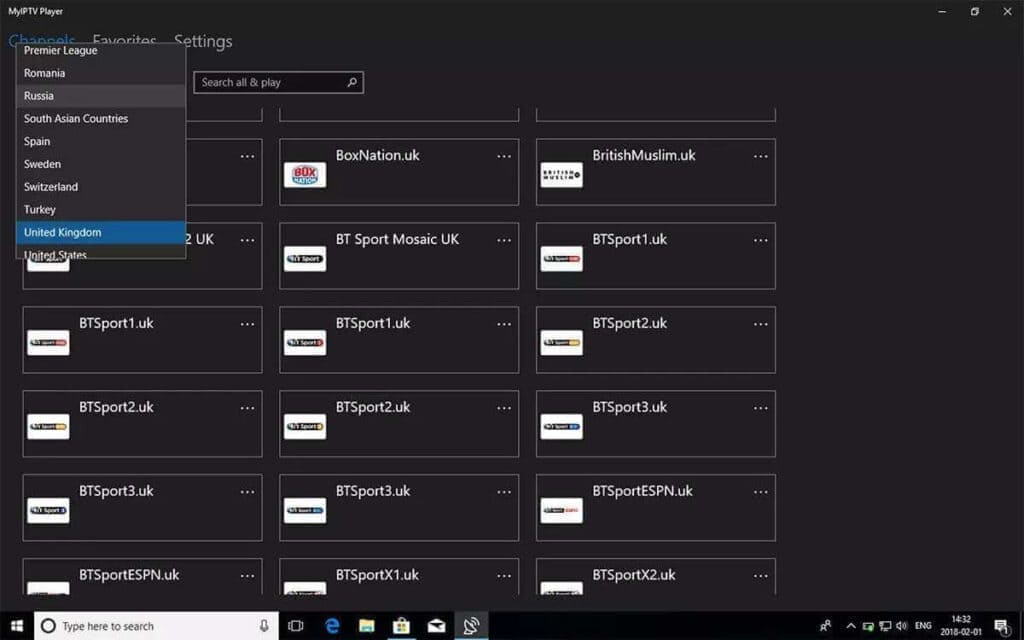
- Done! Go to the Channels tab, choose your country, and start watching your favorite TV and VOD content